Booklore - Email to Kindle

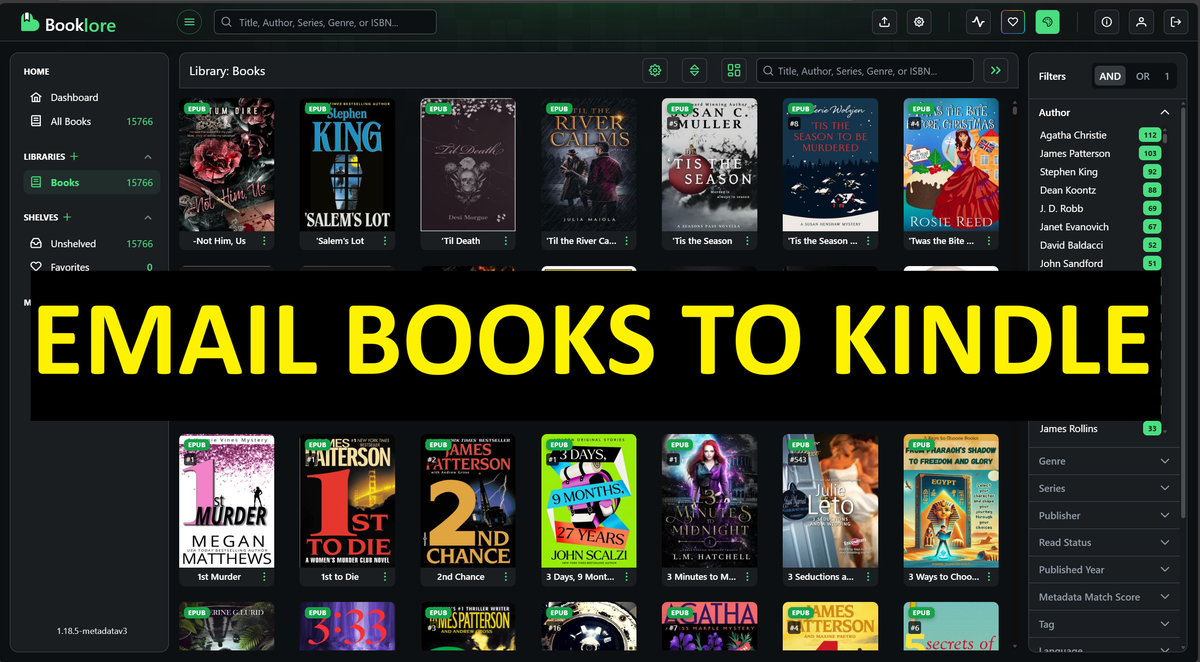
So you are part of a Booklore server and wanted to know how to send the books from the Booklore server directly to your kindle, there area few things that must be set correctly fo this to work.
Steps needed by the Booklore Admin (Must be done or this will not work):
Enable Downloads for the User.
Setup an SMTP server.
Steps by the User:
Step 01:
We need to find the email address of your Kindle device, this can be done in the settings of your kindle device itself or in the Amazon webpage, since we need to make some changes there anyways, I will show the steps from Amazon webpage instead, les navigate and login to Amazon.com and click on "DEVICES"
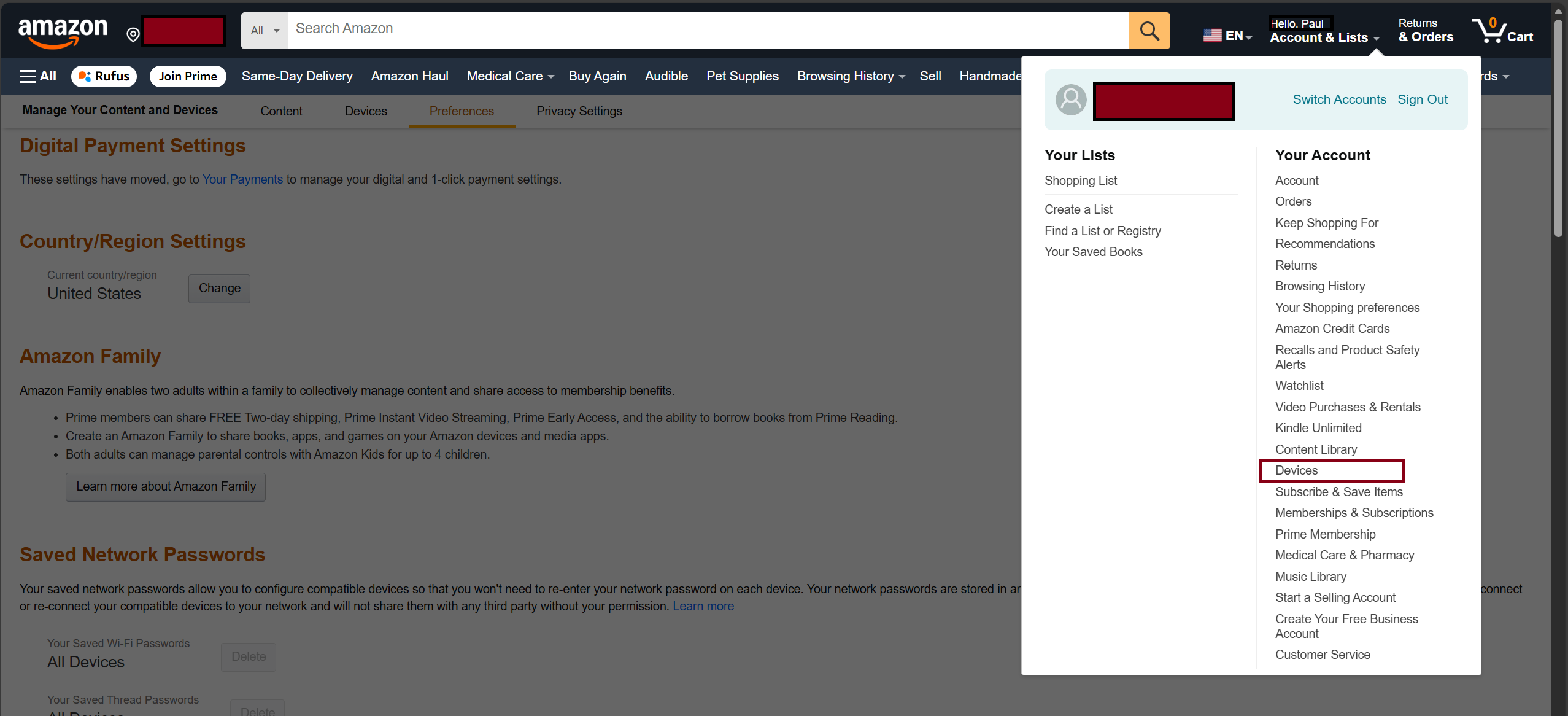
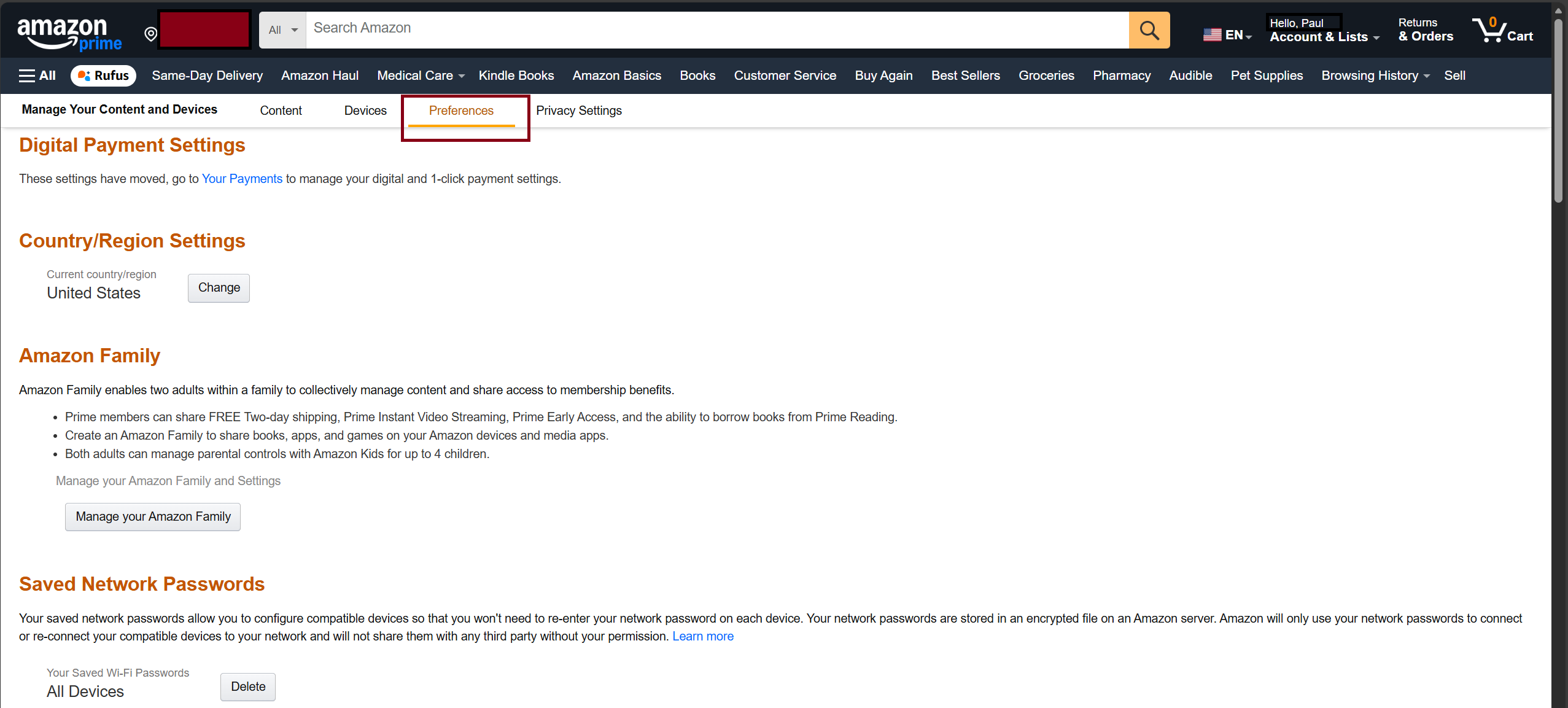
From here we will click on "PREFERENCES".
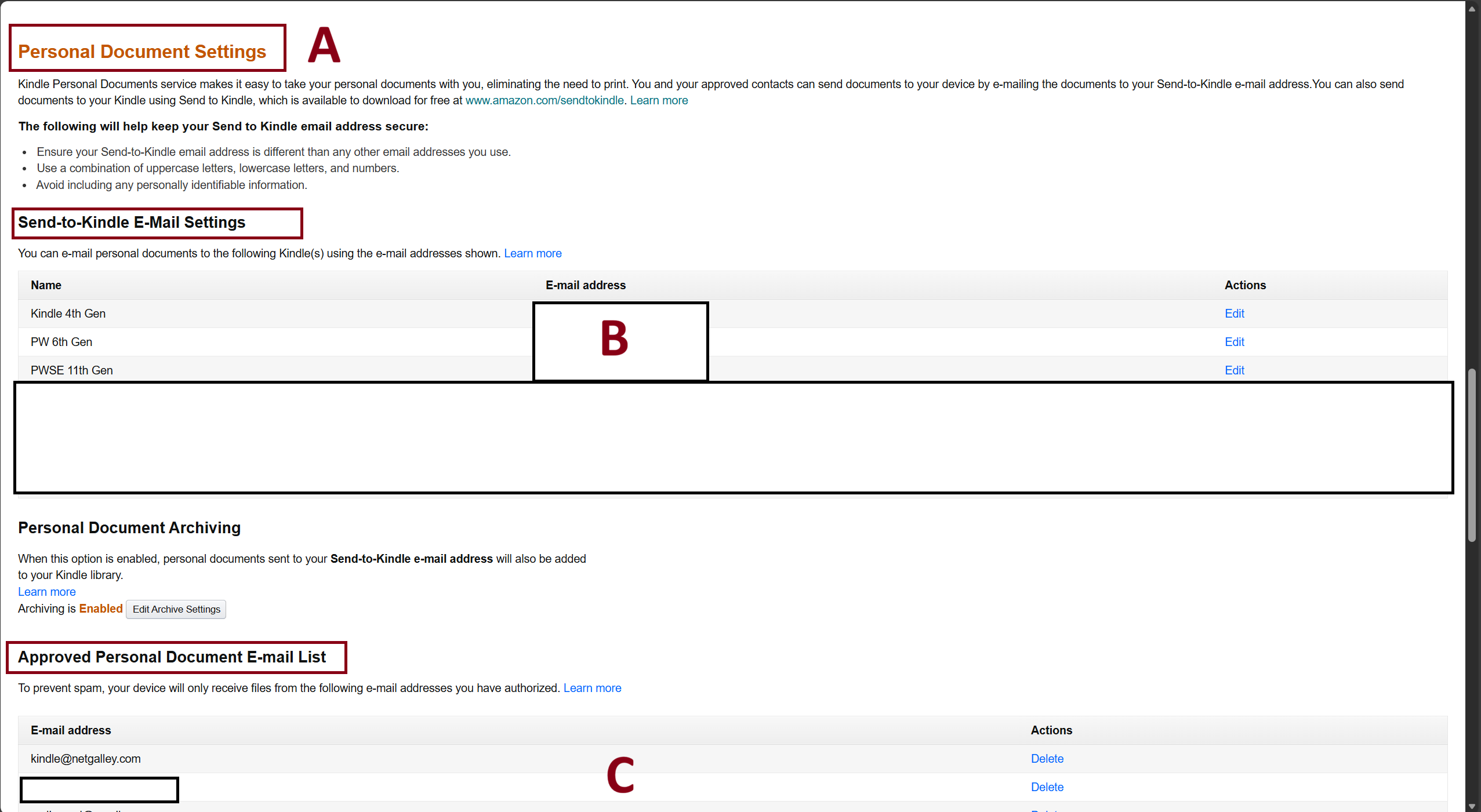
Now we will scroll down to "PERSONAL DOCUMENT SETTINGS" (A), and you will be able to find all the kindle devices you have registered and their assigned email addresses (B), make a note of this address as we will need it later, also in section "Approved Personal Document E-mail List" (C), you will see a list of the "EMAILS" that you have AUTHORIZED to send "Books/Documents" to your kindle devices, we will need to add the email address from Booklore, remember this location as we will come back here.
Step 02:
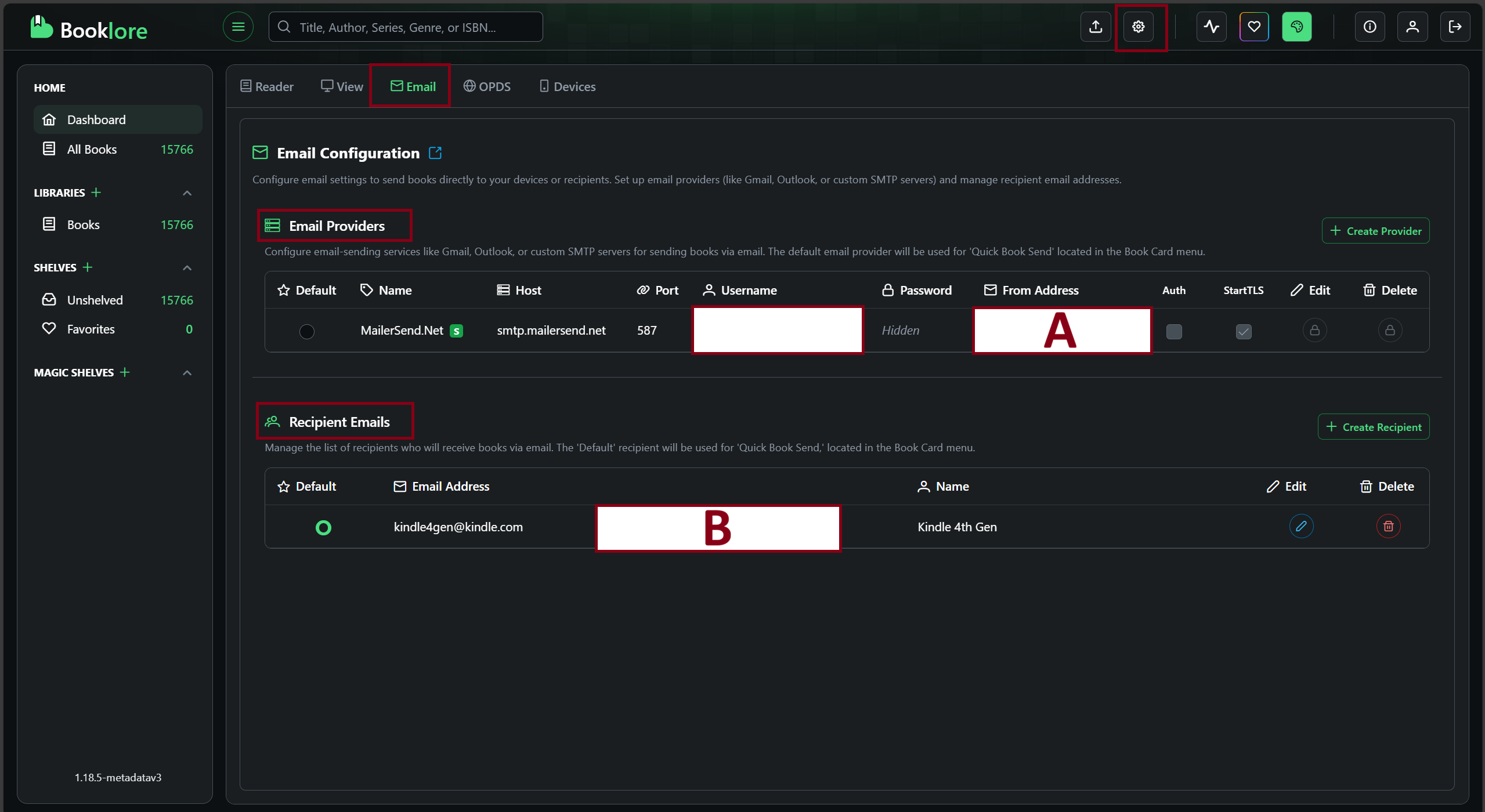
Let's open Booklore Email Settings page, we should see the "From Address" (A) this is the email that will send books in your behalf, this email must be added to Amazon's "Approved Personal Document E-mail List" seen in step 01 if not, Amazon will not deliver the books to your kindle.
In the "Email Recipients" (B), here is where you add your Kindle devices email addresses (or any email you want the book to be emailed to).
Not shown as highlighted in picture but make sure you click/activate the "DEFAULT" circle on the "Email Providers" and also pick a Default "Email Recipient" (already selected in the picture) by doing so we can take advantage of the "Quick Send" option when sending books.
Step 03:
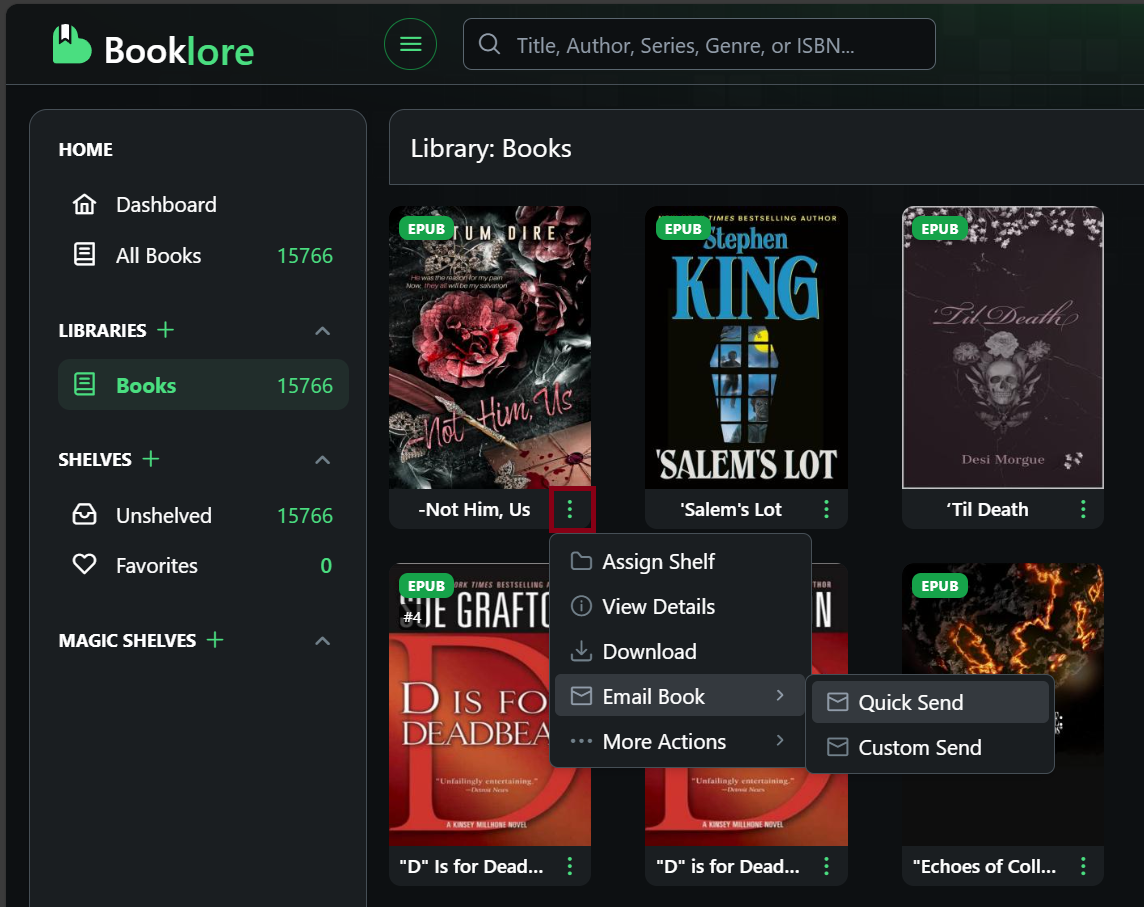
If Default's where selected, simply chose "Quick Send" and book will be scheduled to be emailed to you default Kindle (or email address). Action shown is from main UI.
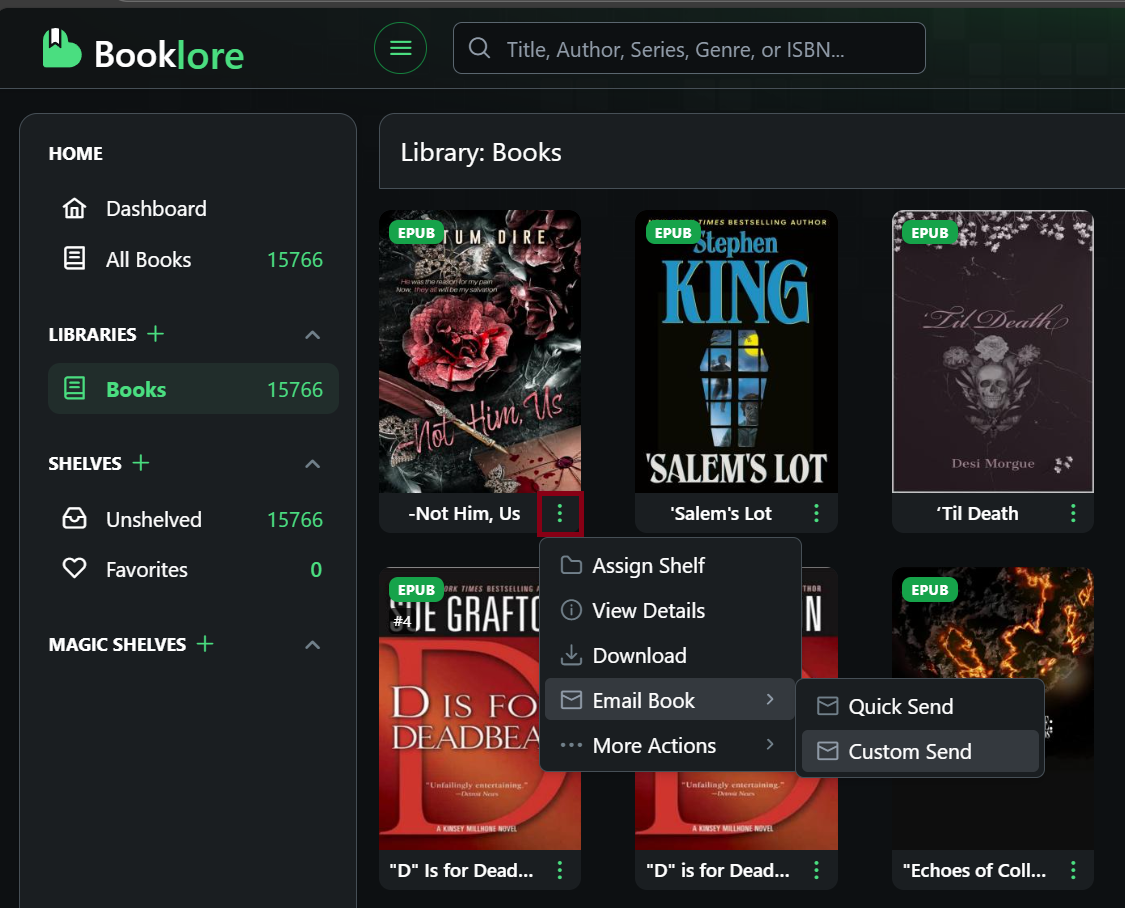
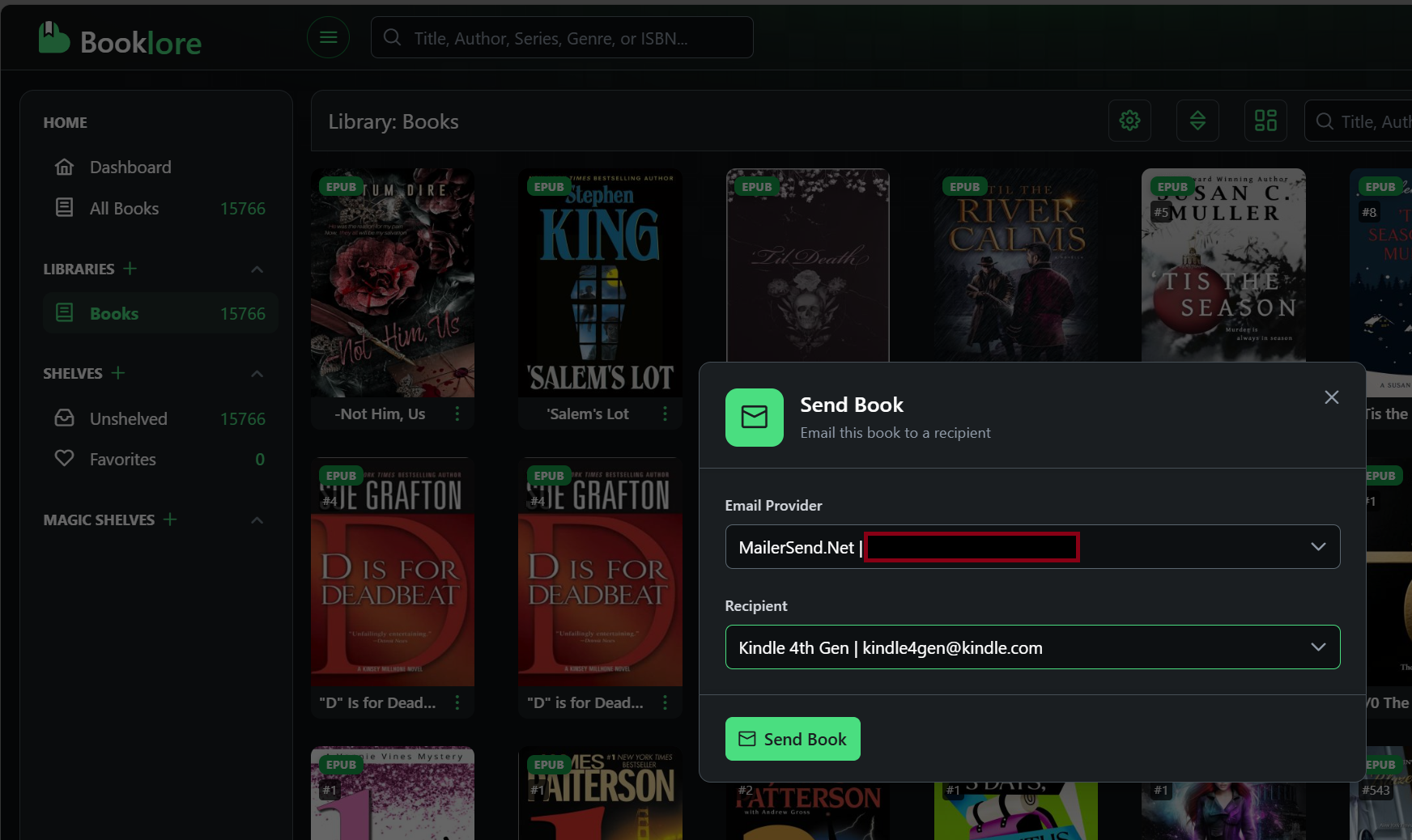
If you have multiple Kindles (or Emails) and want to choose which one to send to, then chose "Custom Send", Then chose a Provider, and your Kindle to send book to. Action shown is from main UI.
Conclusion:
That is all that is needed, simple and quick. If I missed something, or you want more info, please leave me a comment and I'll amend instruction as needed.
If you found this info useful, can you be so kind you can take a look at my YouTube Channel and subscribe as a way to help my small channel grow.
Thank you!.


Also have a BuyMeCoffee Link if so inclined.